How a Browser Works: A Beginner-Friendly Guide to Browser Internals

I am a developer learning web development , I am a college dropout pursuing my passion in software field
So browser is the thing everyone use almost daily in there day to day life. What we do is, we write the URL (eg: google.com) and press Enter, and boom magic happen a colorfull page appear in front of u
But between the split seconds of pressing enter and seeing the web page, our browser has performed a complex symphony of tasks involving networking, parsing, calculation, and artistry.
This post walks you through that journey step by step, like a story—no specs, no heavy jargon, no memorization pressure.
If you’ve ever wondered “what is my browser actually doing?”, this is for you.
1. What a browser actually is (beyond “it opens websites”)
Before we dive into the mechanics, let's clarify what a browser actually is.
Most people think of a browser simply as "the thing that gets me to the internet." While true, that’s a bit like saying a car is "the thing that gets me to the store." It misses the engineering beneath the hood.
At its core, a browser is a piece of software designed to request resources from the web (like HTML files, images, and fonts) and display them to you.
It will be not wrong if we say: A browser is a mini operating system for the web*.*
Its job is to:
Talk to servers
Download files (HTML, CSS, JS, images)
Understand those files
Convert them into pixels on your screen
React to clicks, scrolls, and typing
All of this happens every time you load a page.
2.Main parts of a browser (high-level view)
Think of the browser as a team, not a single program.
At a very high level, it has:
A User Interface (what you see and interact with)
A Browser Engine (the coordinator)
A Rendering Engine (turns code into visuals)
A Networking layer (talks to the internet)
A JavaScript engine (runs JS code)
You don’t need to memorize these. Just understand the flow.
i. User Interface: what you actually see
This is the obvious part:
Address bar (URL bar)
Tabs
Back / Forward buttons
Refresh button
Scrollbars
Important note:
The UI does not render websites.
It only handles user interaction and passes instructions inward.
When you press Enter, the UI says:
“Hey browser engine, user wants this URL.”

ii. Browser Engine vs Rendering Engine (simple distinction)
This confuses beginners, so let’s simplify.
Browser Engine
Acts like a manager
Coordinates between UI, networking, rendering, and JS engine
Decides what happens next
Rendering Engine
The artist
Takes HTML + CSS
Converts them into what you see on screen
Manager vs artist. That’s it.

iii. Networking: how the browser fetches HTML, CSS, JS
Once the URL is entered:
Browser checks:
- Is this page cached?
If not:
- Makes a network request to the server
Downloads:
HTML first
Then CSS
Then JavaScript
Then images, fonts, etc.
Think of it like ordering food:
HTML = main dish
CSS = presentation
JS = behavior

3.HTML parsing and DOM creation
The browser does not read HTML as text.
It parses it.
What does parsing mean?
Breaking raw text into a structure the browser can understand.
HTML:
<h1>Hello</h1>
<p>World</p>
Becomes something like a tree:
Document
h1 → “Hello”
p → “World”
This structure is called the DOM (Document Object Model).
DOM is just a tree representation of your HTML.

4.CSS parsing and CSSOM creation
CSS also gets parsed.
CSS:
p {
  color: red;
}
Becomes another tree-like structure called the CSSOM.
CSSOM = all style rules, structured and ready to apply.
Now the browser has:
DOM → what elements exist
CSSOM → how they should look
5.How DOM and CSSOM come together
DOM + CSSOM → Render Tree
The render tree:
Contains only visible elements
Combines structure + styles
Ignores things like
display: none
This is the browser saying:
“Okay, THIS is what I actually need to draw.”

6.Layout (reflow), painting, and display
Now the browser moves from thinking to drawing.
i. Layout (Reflow)
Calculates positions and sizes
Where does each element go?
How wide? How tall?
ii. Paint
Fills in pixels
Colors, borders, text, shadows
iii. Display
Sends the final pixels to your screen
You see the page
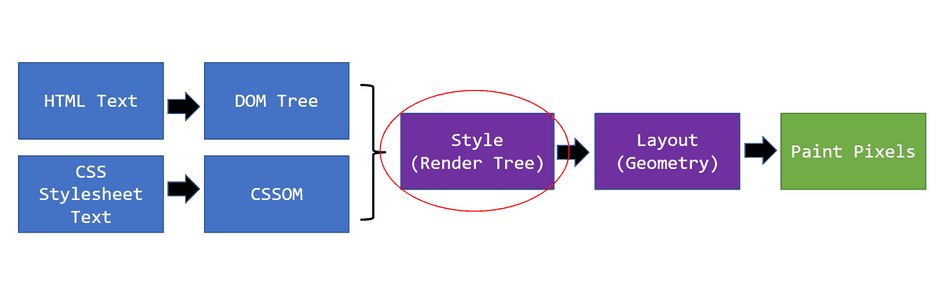
This process can repeat when:
You resize the window
Content changes
JavaScript modifies the DOM
Conclusion: The Miracle in milliseconds
And there you have it. You pressed enter, and in the blink of an eye, your browser:
Acted as a network delivery courier.
Parsed raw text into structured trees (DOM and CSSOM).
Combined those trees.
Calculated complex geometry based on your screen size.
Painted millions of pixels.
It’s a lot to take in! As a beginner, don't worry about memorizing every acronym right now. The most important takeaway is understanding the flow: the transformation of raw text into structure, the marriage of structure and style, and finally, the calculation of layout before painting pixels.
Next time you open a new tab, take a second to appreciate the incredible engineering happening beneath your fingertips.


