Understanding HTML Tags and Elements

I am a developer learning web development , I am a college dropout pursuing my passion in software field
If you imagine a website as a house, HTML (HyperText Markup Language) is the blueprint and the frame. Before you add the paint (CSS) or the electricity (JavaScript), you need a solid structure to hold everything together.
HTML is the standard language used to create the skeleton of a webpage. It tells the browser what kind of content is on the page: "This is a heading," "This is a paragraph," or "This is an image."
But to speak this language, you need to understand its alphabet: Tags and Elements.
1.What HTML Is and Why We Use It
HTML (HyperText Markup Language) is the standard language used to create and structure web pages.
HTML answers questions like:
Is this text a heading or a paragraph?
Is this an image or a link?
Is this content grouped together or separate?
Without HTML:
Browsers wouldn’t know what content means
Search engines wouldn’t understand your page
Accessibility tools would fail
HTML gives meaning to content.
2.What is an HTML Tag?
An HTML tag is a keyword enclosed in angle brackets (< >). These tags act like labels or instructions for the web browser. They don't appear on the screen themselves; instead, they tell the browser how to display the content inside them.
Think of tags like containers or boxes. If you want to ship a fragile lamp, you put it in a box labeled "Fragile." In HTML, if you want to show a paragraph of text, you put it inside a "box" labeled <p>.
<p>
The Anatomy of a Tag
Most HTML instructions come in pairs:
The Opening Tag: This marks the start of an element (e.g.,
<p>).The Closing Tag: This marks the end. It looks just like the opening tag but includes a forward slash (e.g.,
</p>).The Content: This is the information that sits between the tags—the text or media you actually see on the screen.
<p> Hello World </p>
3.HTML Tags vs. HTML Elements
These two terms are often used interchangeably, but there is a distinct difference.
Tag: Refers strictly to the code in the brackets (the start or the end).
Element: Refers to the entire package: the opening tag, the content inside, and the closing tag.
The Formula:
$$Opening Tag + Content + Closing Tag = HTML Element$$
Example:
<p>is a tag.Hello Worldis the content.<p>Hello World</p>is the element.

4.Special Case: Self-Closing (Void) Elements
Not all elements have content to hold. Some elements stand alone because they don't wrap around text. These are called Self-Closing or Void Elements.
Since they don't hold content, they don't need a closing tag.
Examples:
<br>(inserts a line break)<img>(embeds an image)<hr>(inserts a horizontal line)
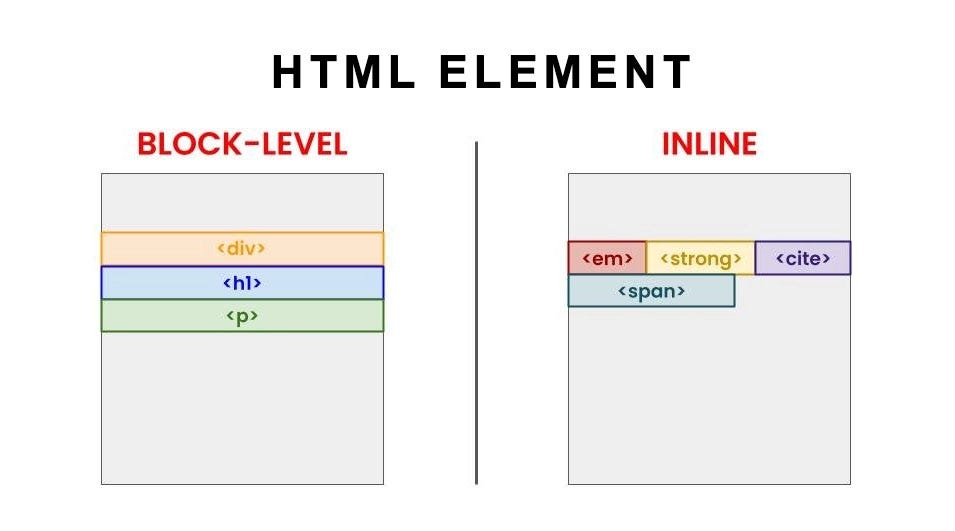
5.Layout Logic: Block-level vs. Inline Elements
When you put elements on a page, they behave in two distinct ways. Understanding this is crucial for controlling how your page looks.
1. Block-level Elements
These elements act like building blocks.
They always start on a new line.
They take up the full width available (stretching from left to right).
Examples:
<div>,<h1>through<h6>,<p>.
2. Inline Elements
These elements go with the flow.
They do not start on a new line; they sit inside other elements.
They only take up as much width as necessary.
Examples:
<span>,<a>(links),<b>(bold text).
Think of it this way: A Block element is like a paragraph in a book (it starts on a new line). An Inline element is like a specific word within that paragraph that you highlighted.
6.Common HTML Tags You Should Know
Here is a quick cheat sheet of the tags you will use 90% of the time:
| Tag | Description | Type |
<h1> to <h6> | Headings. h1 is the largest (main title), h6 is the smallest. | Block |
<p> | Paragraph. The standard tag for body text. | Block |
<a> | Anchor. Creates hyperlinks to other pages. | Inline |
<div> | Divider. A generic container used to group other elements together. | Block |
<span> | A generic container used to style small pieces of text. | Inline |
<ul> & <li> | Unordered List & List Item. Creates a bulleted list. | Block |
Try It Yourself!
The best way to learn HTML is to see it in action. Open any website (even this one!), right-click on a specific part of the page, and select Inspect. You will see the actual HTML skeleton that makes up the page.
Look for the <div>s, the <span>s, and the <p> tags. You are now looking at the web through the eyes of a developer!


